
Lesson
Python Basics
Introduction
This document provides a step-by-step guide on using Python to write code, assign variables, perform operations, use control statements, loops, and functions. It also covers the basics of working with strings, integers, floats, and lists. Material for this session
Installing Python
To get started with Python, follow these steps:
-
Run the python installer
-
Before clicking install make sure to click add to path
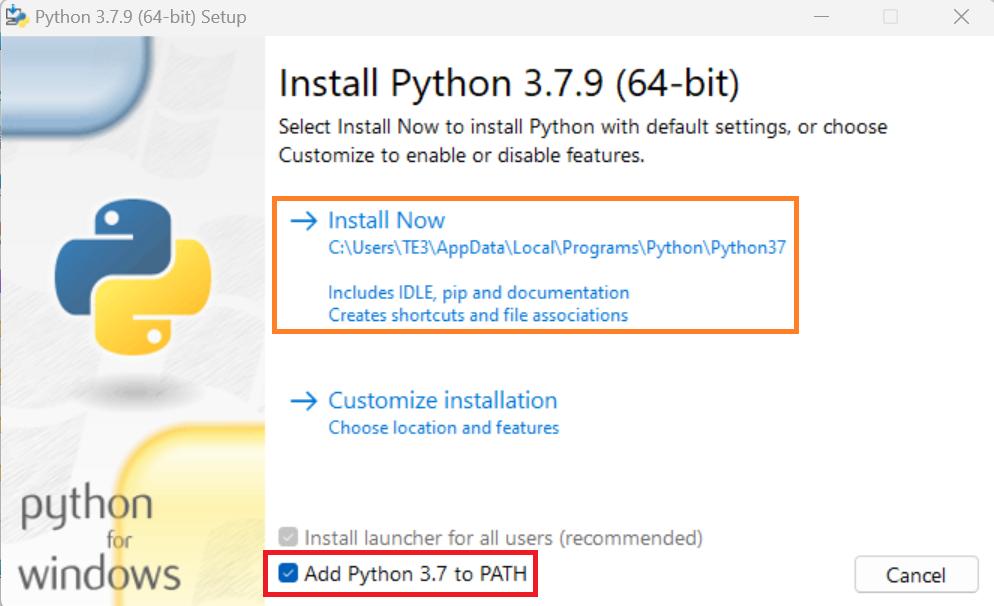
- Install
If all goes well you should not receive any errors and python should be installed successfully
Installing VScode
Now that we have python installed lets go ahead and install VScode an idle which can allow you to better manage your code.
To get stated with VScode, follow these steps:
-
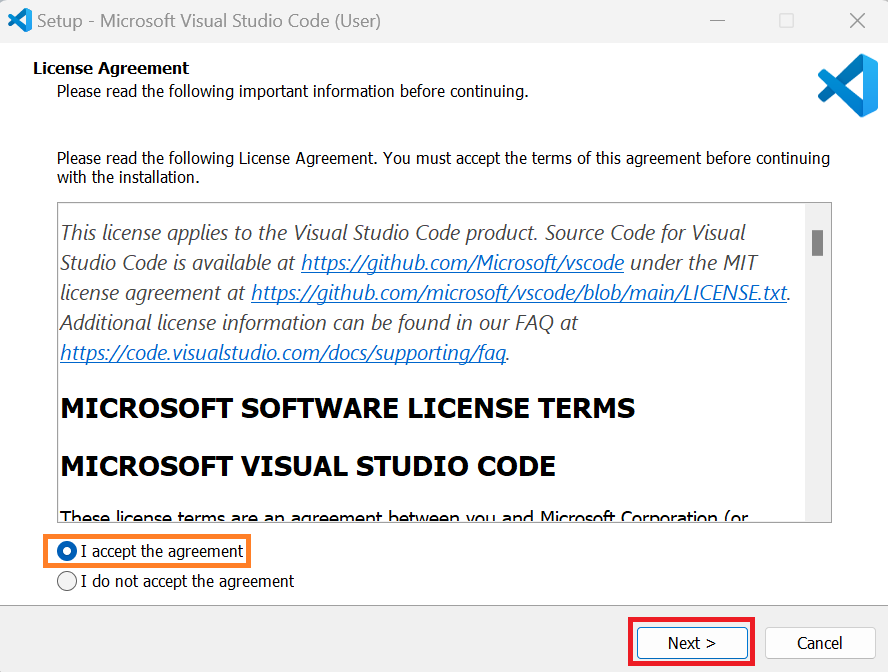
Run the VScode installer
-
Agree to the terms of coditions
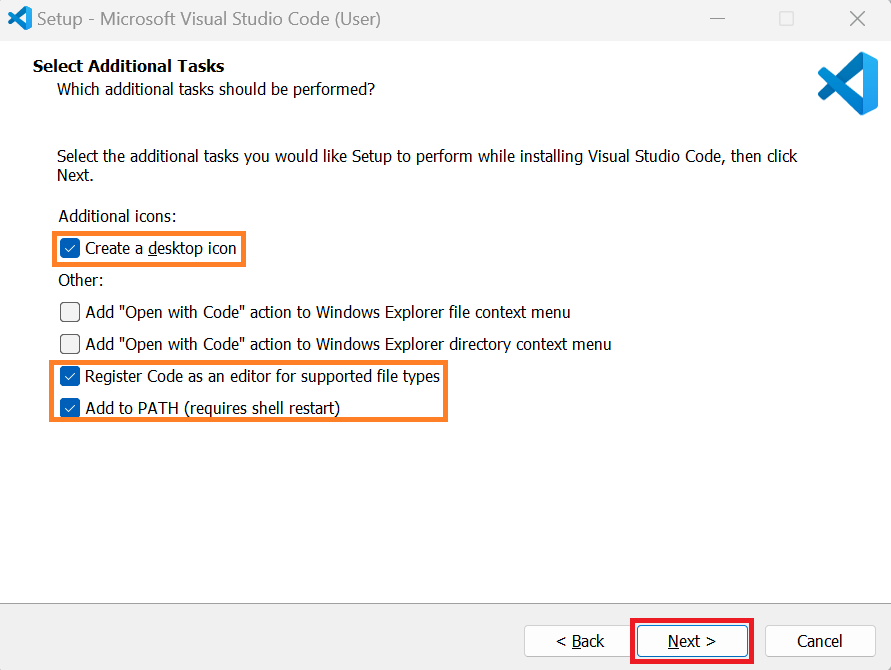
- Make sure add to path has been checked
- Install
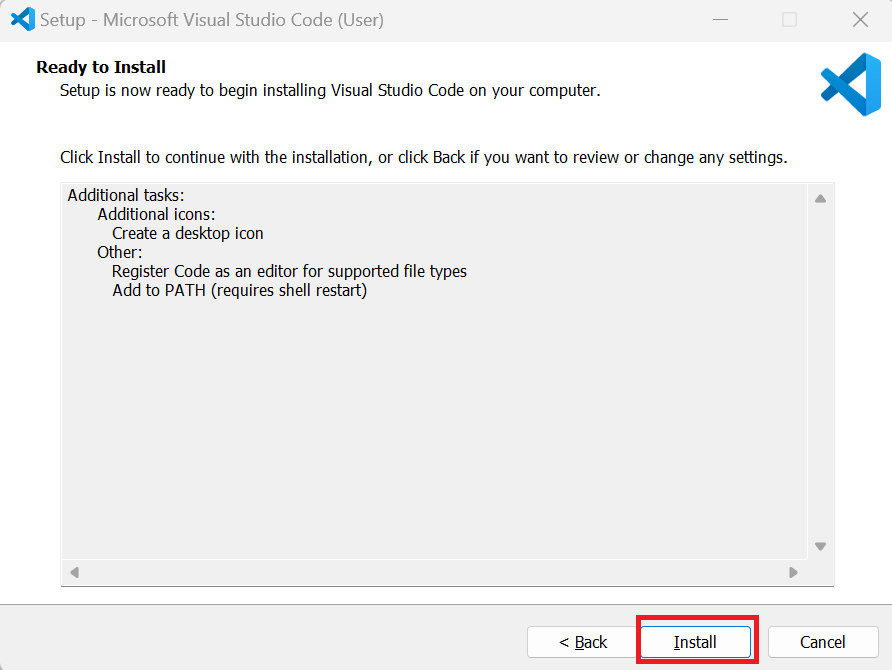
If all goes well you should not receive any errors and VScode should be installed successfully
Setting up the directory to store our python files
Before we start coding lets create a new folder called python inside the folder create another folder called basics
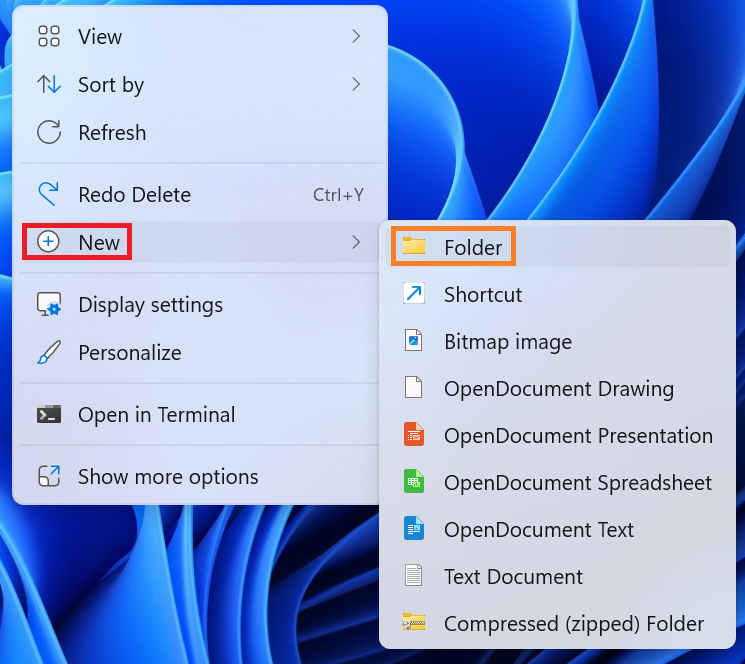
- Right click
- Select New -> Folder
- Name it
python
-
Inside the new folder Right Click
-
Select New -> Folder
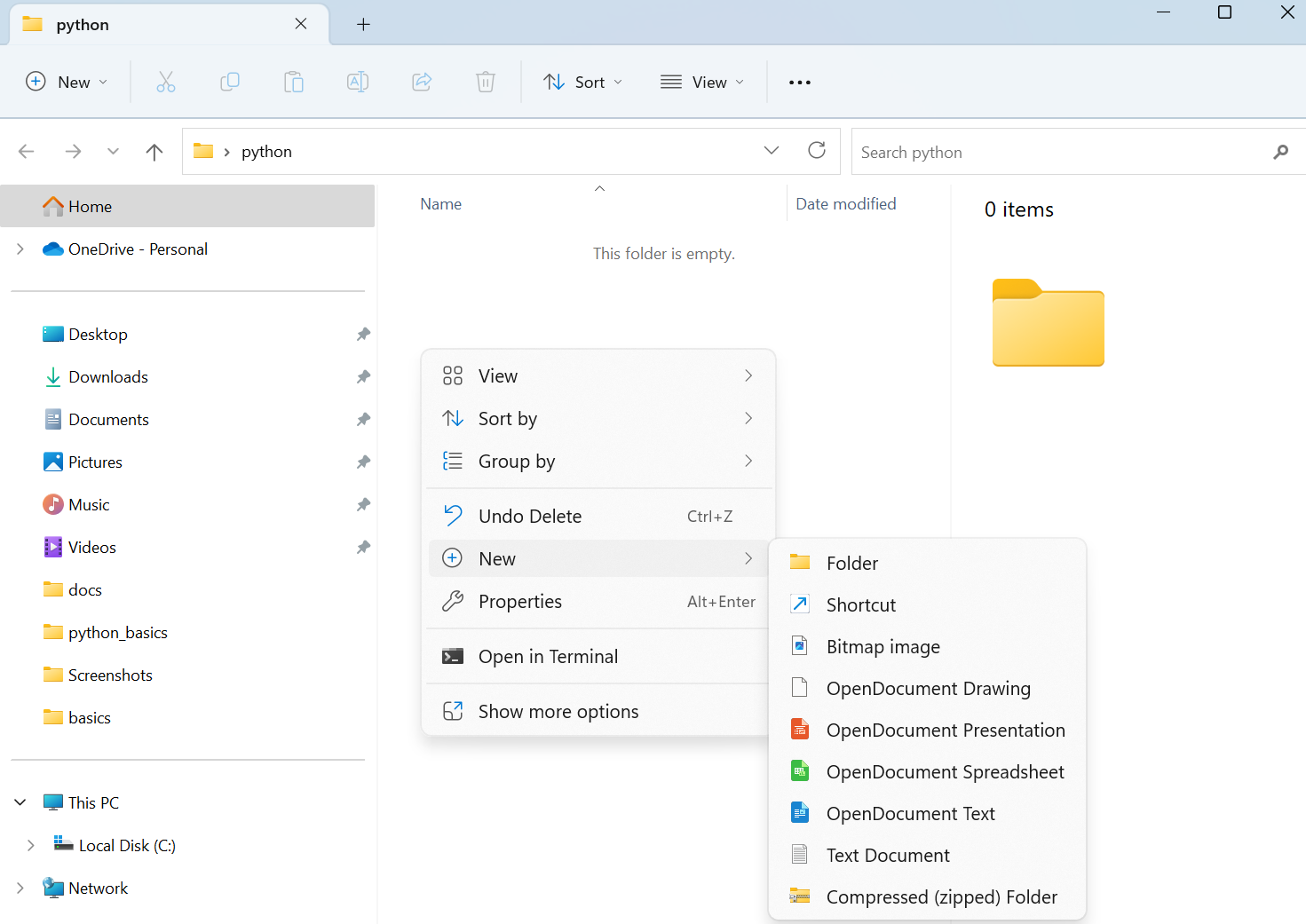
- Name it
basics
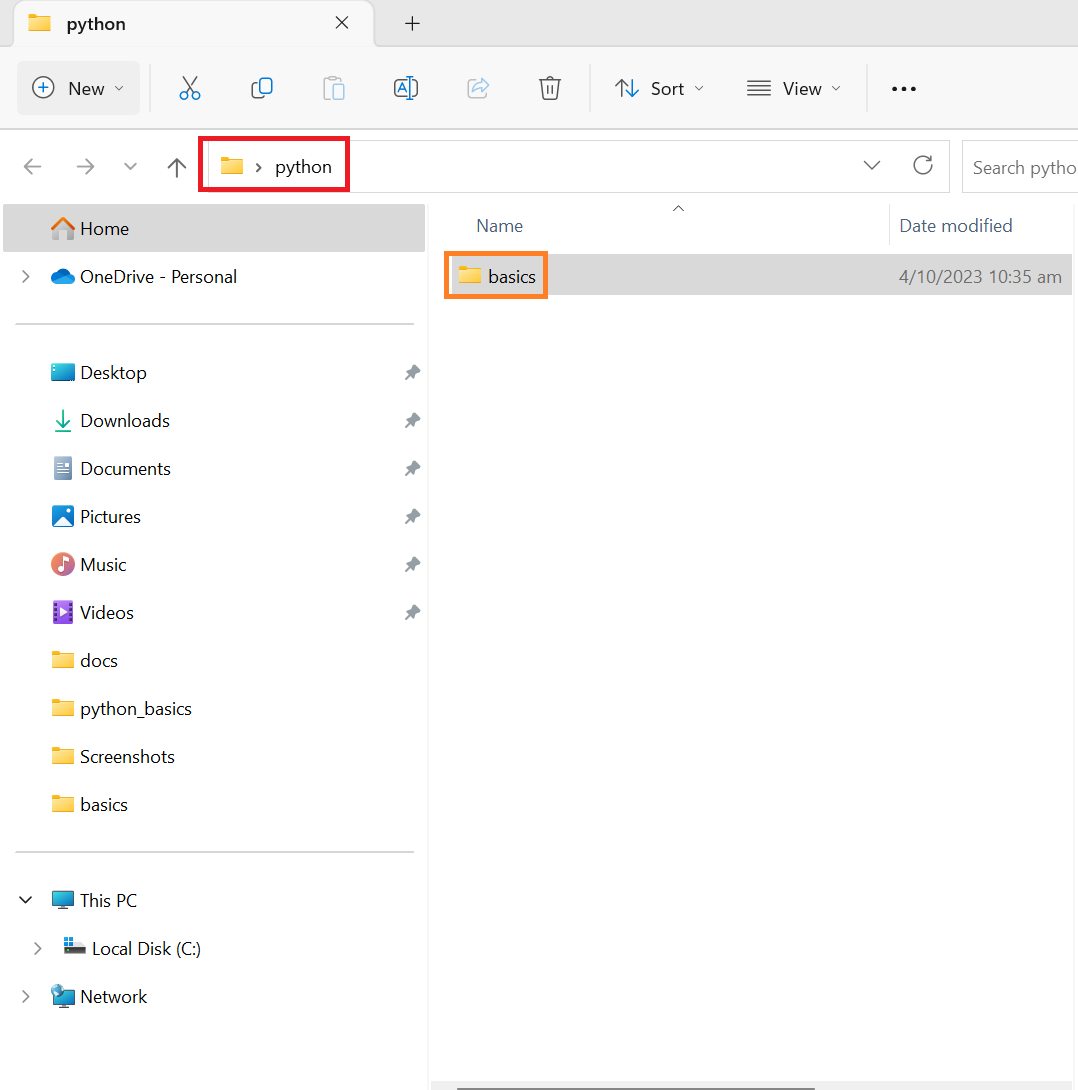
It should appear inside the python folder we just created
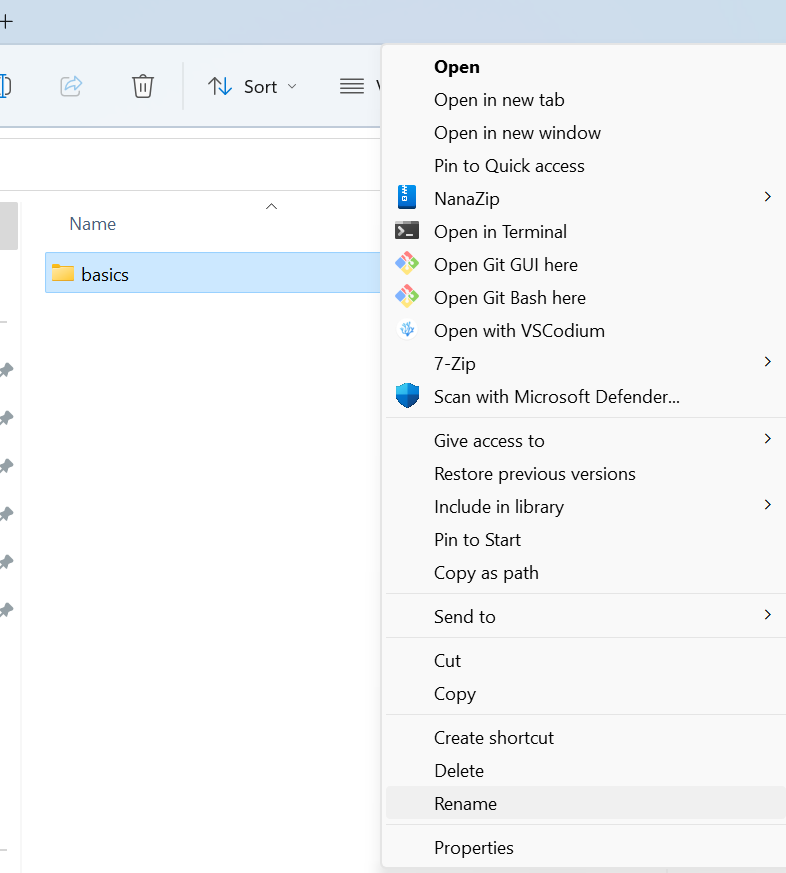
If you need to rename your folder
Left click the folder once so that it is highlighted
Then right click
Select Show More options
At the bottom you will see rename
Getting started with coding in python
In order to start coding your first program in python, follow the following steps:
- Open VScode.
- Go to
Fileand selectopen folder.
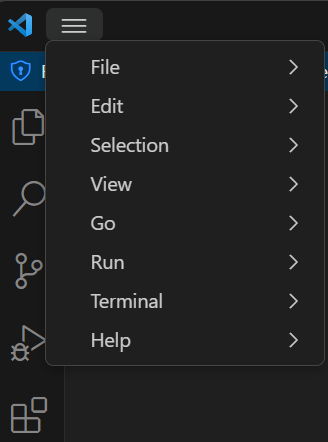
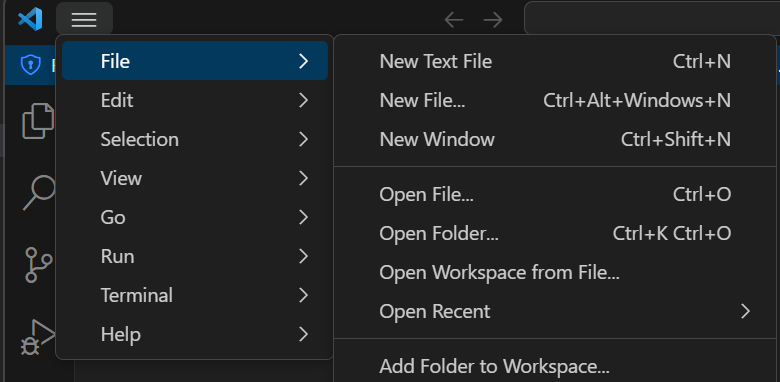
- select the
basicsfolder we just created - Then go to
Fileand selectnew file - type the file name
hello.py

- save it in the
basicsfolder - Type the following code
name = "hello" # strings are a type of data type and require "" in this case "hello"
print(name) # print statement outputs the data stored inside name which is a variable
- Save the file with
Ctrl Sorfile save - Run the code using the following method:
- use the terminal built in VScode
- on the top left the 3 bars

- Select
New Terminal - The terminal will show up at the bottom of your screen
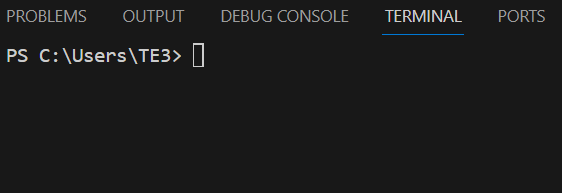
- Type the following into the terminal:
python hello.py - as long as you opened the correct folder, the program should be run successfully

Installing Libraries
Included with python is pip which allows you to install python libraries using the command line. To do so
-
first google the installation command of the library you want to install e.g. pip install opencv-python
-
Then goto the command line
-
type the command in
-
e.g.
pip install opencv-python
If all goes well you should not reveive any errors and the library should be installed successfully
You may ignore warnings as long as it does not affect the functionality of the library.
Variables and Output
Variables can be created and assigned values in Python using the assignment operator =. To assign a word or string, enclose it in either double quotes (" ") or single quotes (' '). The print() function is used to display the output. From earlier:
name = "hello"
print(name)
remember
variable on the left of equal sign = data type on the right of equal sign
Variables in Python
In Python, variables are used to store and manipulate data. They act as placeholders for values that can change during the execution of a program. Here are some key points to understand about variables in Python:
Declaration and Assignment
Variables in Python are declared by assigning a value to them using the assignment operator (=). For example:
age = 25 # int is a number with no decimal
name = "John" # string
old = False # boolean is either True or False
time = 22.4 # float Is a number with decimals
Strings and Other Data Types
Strings are sequences of characters in Python. They can be assigned by enclosing the text in quotes. Other Data types include integers, floats, booleans, and lists. In Python, integers and floats can be automatically assigned. Comments in Python are indicated using the # symbol.
Example with a list:
food = ["Pizza", "Noodles", "Pasta"] #list with strings inside
print(food[0])
In this case to access an element from the list, we type the variable name followed by [index] where index allows us to control which element we want to retrieve
In python indexes start from 0
So to access Pizza we use food[0]
Similarly for Noodles we would use the index of [1]
Also the default value of a variable is None
If you want to check if a variable is None you can use a if statement
result = None # None is a special it assigns a variable to be a None type
if result is None:
    print("No result availiable")
is operator
checks whether they refer to the same variable/object e.g.
a = [1, 2, 3]
b = a
c = [1, 2, 3]

print(a is b)  # True, a and b refer to the same list object
print(a is c)  # False, a and c are different list objects, even though they have the same values
Input and Output
As seen earlier if you want to print something out to the user you use the print() function but what if you want to receive an input?
To do so you can use the input() function but make sure to assign the correct data type based on what you expect to be inputted
number = input("Enter a number") # Will wait for something to be typed in by a user
print(number) #Prints the number out
this allows you to take inputs from the user if required
If Statements
If statements are one of the main ways to add logic into your python program. It acts something similiar to choosing between a chocolate or candy bar for example you have 5 dollars chocolate costs 6 candy costs 4 so you can only buy the candy bar
if (money>= price of chocolate):
    # buy chocolate
elif #I want candy:
    # buy candy
else:
    # buy nothing
How it works is if you have enough money to buy chocolate you will buy chocolate
Otherwise if you like candy but cant afford chocolate you'll buy candy
Otherwise you won't buy anything
Here's a completed version of the above example
food = ["chocolate", "candy"] # a list with 2 strings
money = 2 # an int 2
price_of_chocolate = 6 # an int
price_of_candy = 4 # an int
likecandy = True # a bool
if(money>=price_of_chocolate): # if statement uses >= operator returns T if bigger or equal
    numberchocolate = int(money/price_of_chocolate) # converts float to int after division
    money_left = money - price_of_chocolate*numberchocolate # remember multiply then subtract
    print("I bought " + str(numberchocolate) + " " + food[0]) # advanced printing use + to add 2 strings together and make sure to convert ints into string
    print("I have " + str(money_left) + " dollar left")# advanced printing use + to add 2 strings together and make sure to convert ints into string
elif(likecandy and money>= price_of_candy): # if stament is false checks if both likecandy and money>=price are True
    numbercandy = int(money/price_of_candy) # converts float to int after division
    money_left = money - price_of_candy*numbercandy # remember multiply then subtract
    print("I bought " + str(numbercandy) + " Candy") # advanced printing use + to add 2 strings together and make sure to convert ints into string
else: #elif statement is false
    print("I bought nothing")
As you can see it combines everything we have learned so far as well as a few new things
For print() it only accepts strings so if we want to print an integer out we need to first convert it to a string using str()
also when doing division if we get a value of 1.1 out but only want 1 we can use int() to convert the float to an int
To add a space in print() we can use " " as it can help add a space
To print multiple words we can use the + to link 2 strings together
Operators
The following operators are what allows you to set the conditions in if statements as well as variables
+,-,*,/,//,%are used for calculations.>,>=,<,<=,==,!=are used for comparisons if two variables have the same valueand,or,notare used to compare boolean values.is,is notchecks if two variables refer to the same or different object in memory
For calculations:
+is used for addition.-is used for subtraction.*is used for multiplication./is used for division.//is used for floor division (division that rounds down to the nearest whole number).%is used for modulus (returns the remainder of division).
For comparisons:
>is used for "greater than".>=is used for "greater than or equal to".<is used for "less than".<=is used for "less than or equal to".==is used for equality (checking if two values are equal).!=is used for inequality (checking if two values are not equal).
For boolean comparisons:
andis used for a logical "and" operation (both conditions must be true).oris used for a logical "or" operation (at least one condition must be true).notis used for a logical negation (reverses the boolean value).
While Loop
A while loop allows you to keep repeating a section of the code until your condition set has become false. This also means if you do not set your condition to false, your code will run forever so please be careful when designing your program.
To achieve this, we can use a loop and a control variable. Here's an example:
i = True
while i:
    # Code to be repeated
    if condition:
    i= False
In the example above, we start by setting the control variable i to True. We then enter a while loop, which will continue executing the code block as long as i remains True. Within the loop, we have an if statement that checks a condition. If the condition is met, we set i to False, which will eventually cause the loop to exit.
By using this structure, the code will repeat until the desired state is achieved, at which point the control variable is modified to end the loop.
Other ways to exit a loop:
break: Thebreakstatement is used to immediately exit a loop. When encountered within a loop,breakwill terminate the loop and the program execution will continue with the next statement after the loop.
-continue: The continue statement allows you to skip any code after the continue statement and go back to the begining of the loop and start the code from there. Usually you use an if statement to find a condition which you do not want then change some variable in the loop then use a continue statement to skip the rest of the loop and start a new iteration in your loop
For example:
i = 0
while(i<10): #1 checks the current value of i with 10 to go inside
    if (i ==5): #2 checks if the value of i is equal to 5
        i+=1    #3 adds 1 to i += is a shortcut instead of i = i + 1
        continue #4 goes back to the 1st comment
    elif(i==8): #5 checks if i is equal to 8  if comment 2 is false
        print(10) # prints to the console 10
        break # breaks out of the loop goes last comment
    else: # if comment 5 is false
        print(i) # prints the current value of i
    i += 1 # adds 1 to i
    print(" end of current loop") # prints the end of the current loop before going back to comment 1

# break leads to here any code below this will execute
So as seen in the example above, the control is i<10 but you can also use any of the other operators to change the logic if needed the if statement checks if 1 is equal to 5 if so it increases i by 1 otherwise if i is equal to 8 it prints 10 then breaks out of the loop otherwise it prints i and increases i by 1 once the if else statements are done it prints end of loop before starting a new iteration of the loop and increases i by 1
For Loop
Similar to a while loop, the for loop is used to iterate through a condition. It is commonly used when you know the number of iterations in advance or when you want to iterate over a sequence of elements.
The syntax of a for loop in Python is as follows:
for i in range(10):
    # Code to be executed within the loop
The loop runs the code then increases the counter of i from 0 to 1 all the way to 9 A coomon usage of for loops is to access lists in python
food = ["Pizza", "Pasta", "Noodles", "Chocolate", "Candy"] # list with 5 strings
for i in range(len(food)): # i will start from 0 to 4
    print(food[i]) # prints the i+1 item in the list e.g. i = 0 prints Pizza which is the first item in the list
In this example the len function gets the length of the list and the for loop prints every element inside the list without going out of range
Functions
To define a function in Python, you can use the def keyword. The syntax for defining a function is as follows:
def function_name(parameters):
    # Code to be executed within the function
    return value
Example
def factorial(n):
   # Code to calculate the factorial of n
   result = 1
   for i in range(1, n+1):
       result *= i
   return result
It is important to declare functions first before using them otherwise you will receive an error
Syntax
Syntax and Indentation in Python
In Python, proper indentation is crucial for code structure and readability. Indentation is used to define the structure of blocks of code, such as loops, if statements, and function definitions. It is enforced by the Python interpreter and helps identify the scope and hierarchy of code blocks.
Indentation is typically done using the Tab key or a consistent number of space characters (e.g., four spaces) at the beginning of each indented line.
One thing to note is the amount of spaces used for indentation does not matter but for good practice do use at least 2-4
Also ensure all your code for that statement whether it is if loop or function is indented at the same amount of space otherwise you will receive a syntax error
If you use a nested statement you will need to indent the code even more Here are some guidelines on when to use indentation:
-
Loops:
for i in range(5): # Code within the loop -
If-statements
if condition:
    # Code to execute if condition is true
else:
    # Code to execute if condition is false
- Functions
def my_function():
    # Code within the function
- Nested
def my_function():
    while True:
        if #something:
            return
        else:
            return #something
The code within the function definition is indented to indicate that it belongs to the function's body. The code within the if statement and else statement is indented to indicate that it is conditionally executed based on the condition.
Comments in Python
Comments are lines of text in a program that are not executed as part of the code. They are used to provide additional information or explanations about the code and help make it more readable and understandable for humans.
In Python, comments can be created using the # symbol. Anything that follows the # symbol on the same line is considered a comment and is ignored by the Python interpreter.
Here are some key points about comments in Python:
-
Comments are used to add explanatory notes to the code, describe the purpose of certain sections, or provide context to other developers.
-
Comments are not executed or processed by the Python interpreter. They are solely meant for human readers and do not affect the program's functionality.
-
Comments can be placed at the end of a line of code or on separate lines.
-
Comments can be used to temporarily disable or "comment out" lines of code that you don't want to execute.
-
Comments are also useful for documenting code and making it easier to understand and maintain.
Here's an example of comments in Python:
# This is a single-line comment

x = 5  # Assigning the value 5 to the variable x

"""
This is a
multi-line
comment
"""

# The following code is commented out:
# print("This line won't be executed")